Meta Editor: App Store
Metadata Editor helps you build the most effective App Store metadata set for every locale. You write Title, Subtitle, and Keywords against your collected semantic core, track which queries you're covering, and predict how a new metadata version will affect your search impressions before you submit.
Before you start
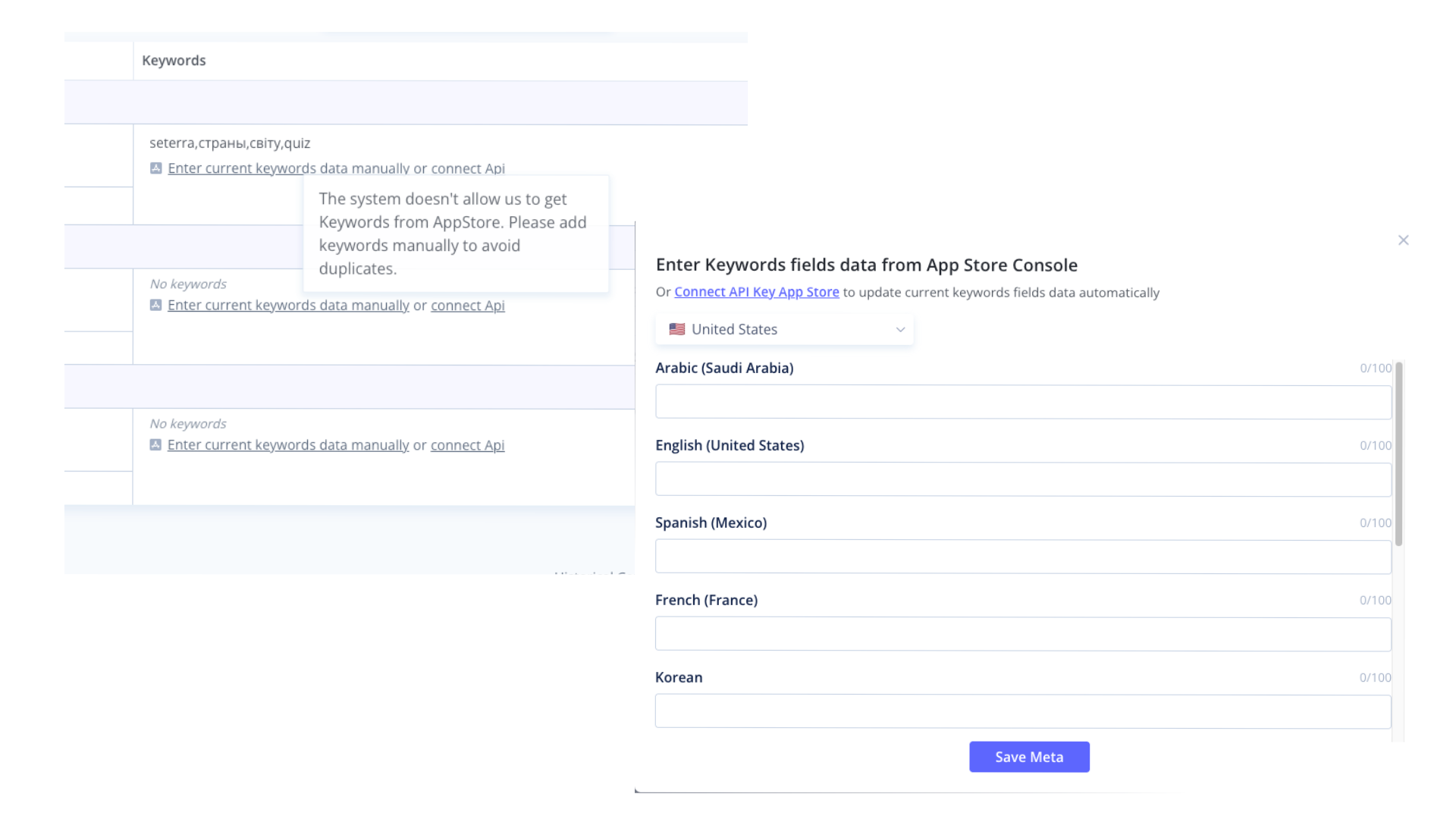
Add your Keywords field data. The Keywords field is hidden from public view in App Store. Meta Editor needs it to show accurate coverage.
Two ways to add it:
- App Store Connect API: connect once, Asolytics pulls keyword data automatically going forward.
- Enter manually: copy your Keywords field text from App Store Connect and paste it in.
You'll see the "Enter Keywords Fields data from App Store Console" prompt when you open a locale for the first time. Without this step, coverage analysis will be incomplete for that locale.
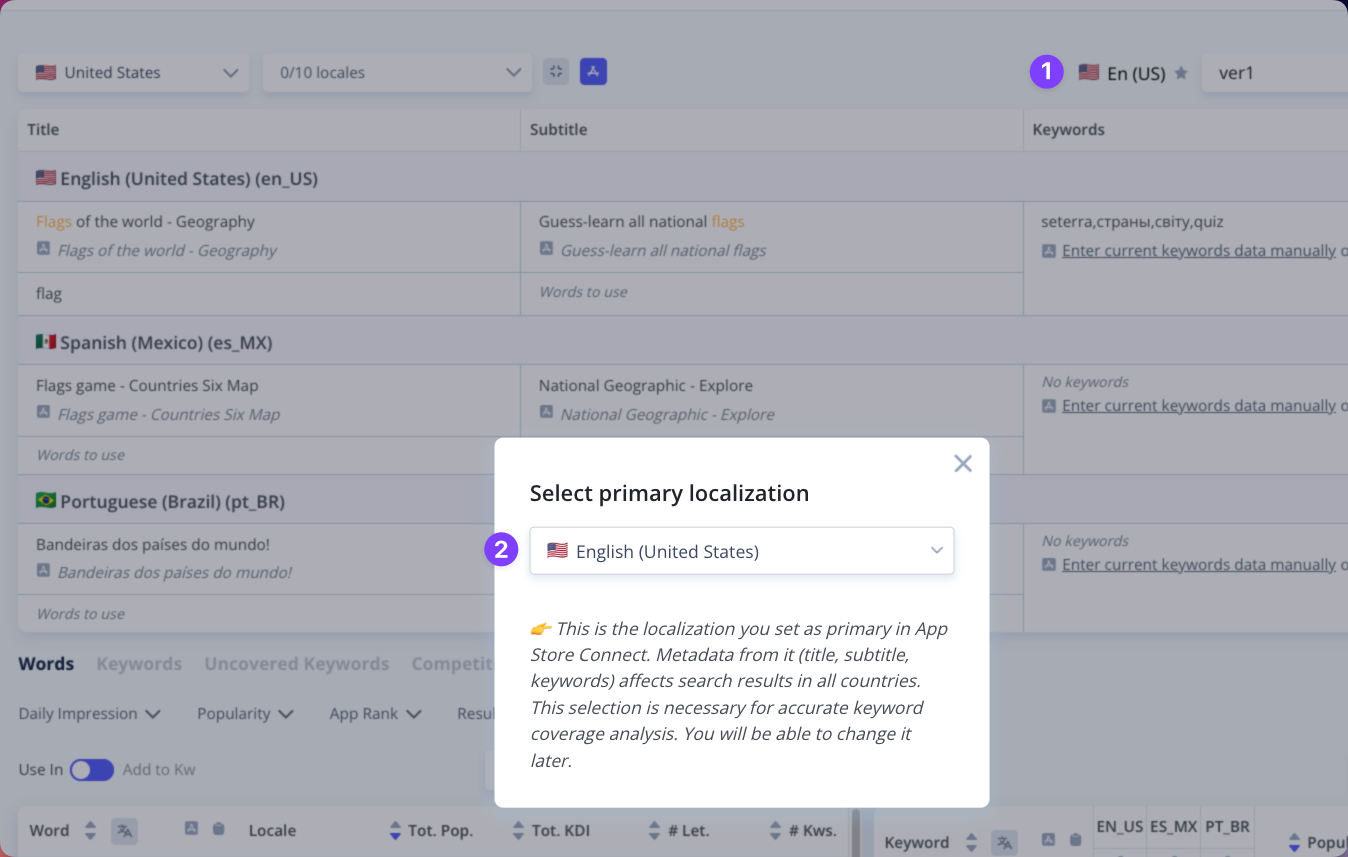
Set your primary locale. Your primary locale (typically English US) is indexed by App Store in every country. Even if you switch to Albania, English US still applies because App Store uses it globally. Set the primary locale once in the settings before you start editing. It affects Impression Forecast results.
Interface overview
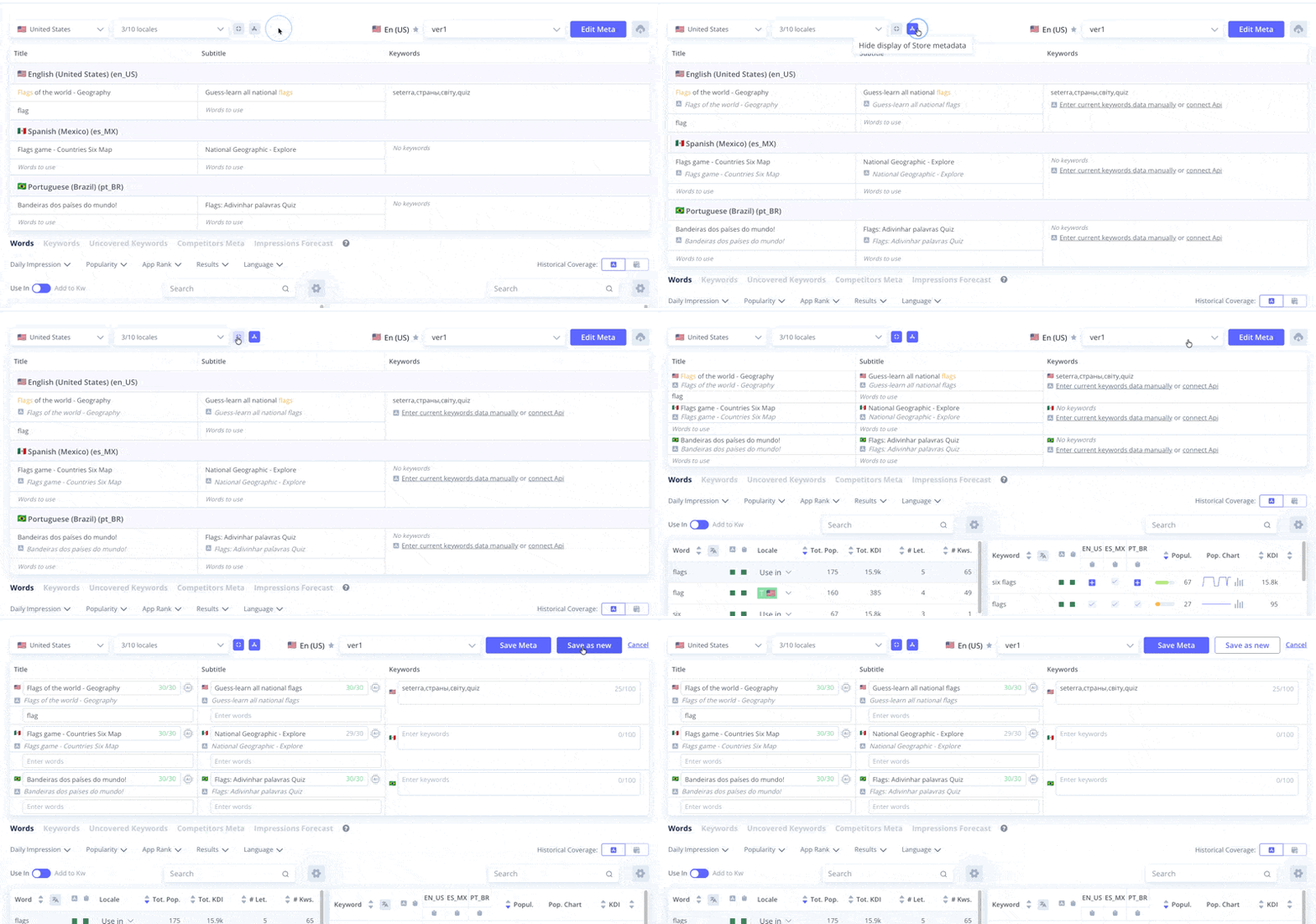
The editor has two main areas:
- Metadata columns (top): one row per locale, with Title, Subtitle, and Keywords fields. Click "Edit Meta" to switch from viewing to editing.
- Analysis tabs (bottom): five tabs for working with keywords and evaluating your metadata.
The five analysis tabs:
| Tab | What it shows |
|---|---|
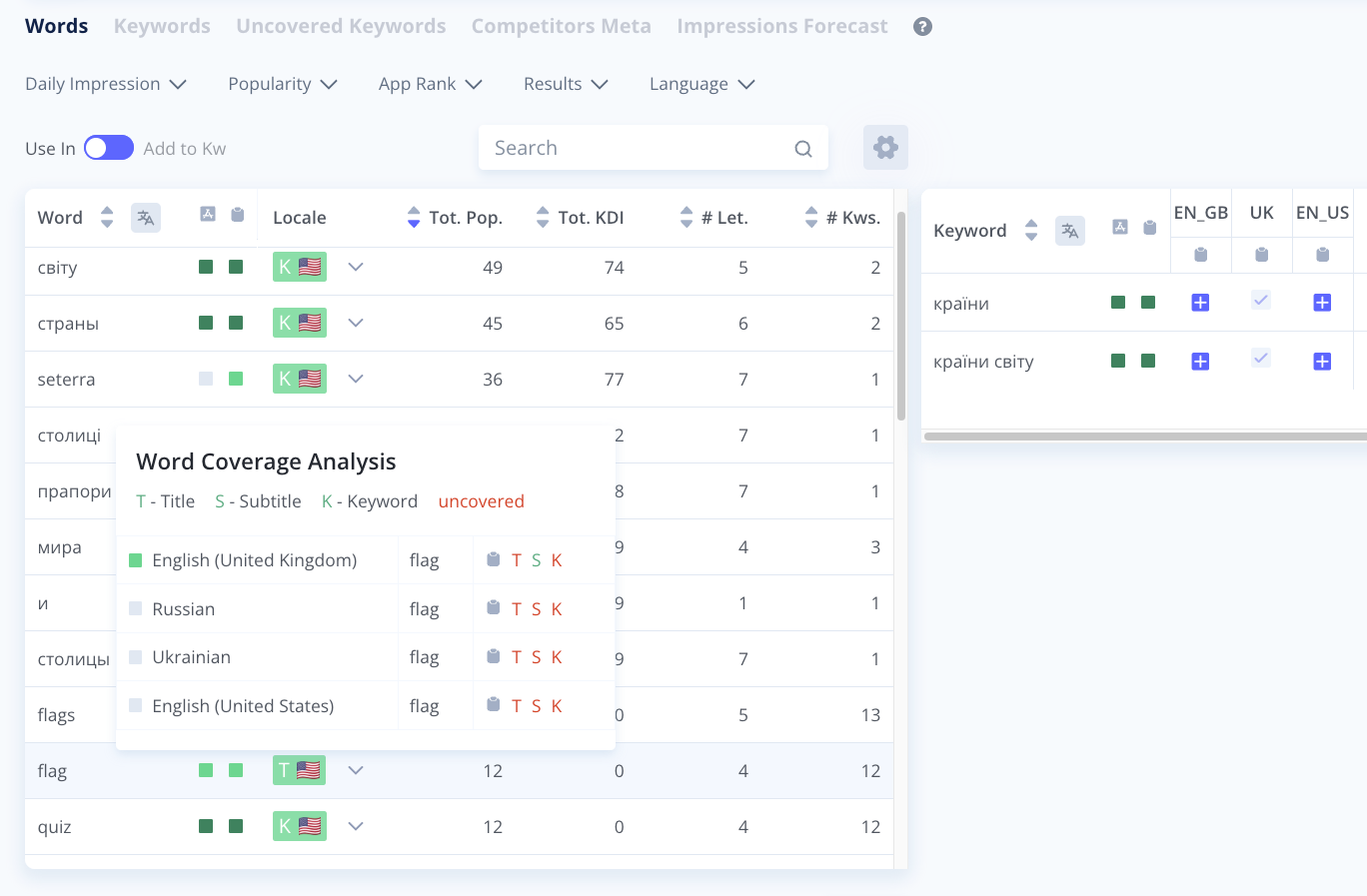
| Words | Words from your semantic core, sorted by total keywords popularity. Coverage indicators per word across locales. |
| Keywords | Your tracked full keyword phrases with per-locale coverage and metrics. |
| Uncovered Keywords | Keywords from your semantic core with zero coverage in the current country. |
| Competitors Meta | Title, Subtitle, and Keywords of your tracked competitors for any locale. |
| Impressions Forecast | Predicted position changes if you submit the current metadata version. |
View mode and Edit mode
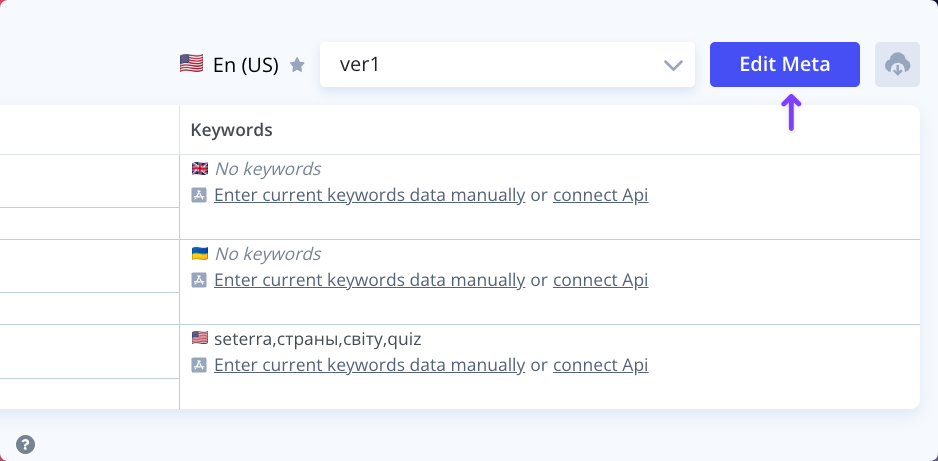
- View mode: your current live metadata with coverage indicators. Good for auditing.
- Edit mode: click "Edit Meta" to start writing. Changes are saved as a draft version, not published.
Turn on "Show current meta" to see your live store metadata alongside what you're drafting. Useful for comparing old and new before committing.
Compact mode and CamelCase
Toggle Compact mode from the top bar for a denser layout. Useful when working across many locales.
CamelCase in the Keywords field saves space. The Keywords field has a 100-character limit and no spaces between comma-separated words. With CamelCase you drop the commas entirely: quizGameWord is 12 characters vs quiz,game,word at 14. On a 100-character field this adds room for extra keywords.
Meta Editor recognizes CamelCase and tracks coverage correctly.
Metadata versions
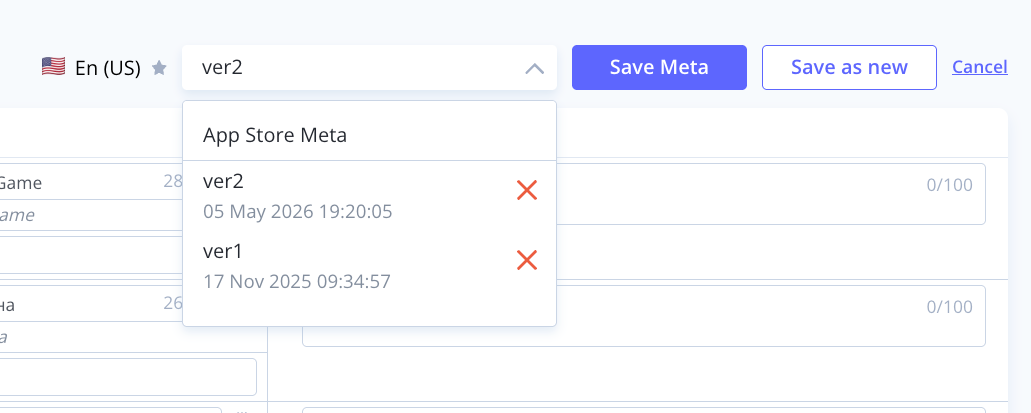
Meta Editor lets you save multiple metadata versions. Switch between them to compare strategies before deciding what to submit.
Coverage indicators
Both the Words and Keywords tabs show two coverage indicators per keyword: one for your current live App Store metadata and one for the metadata version you're editing.
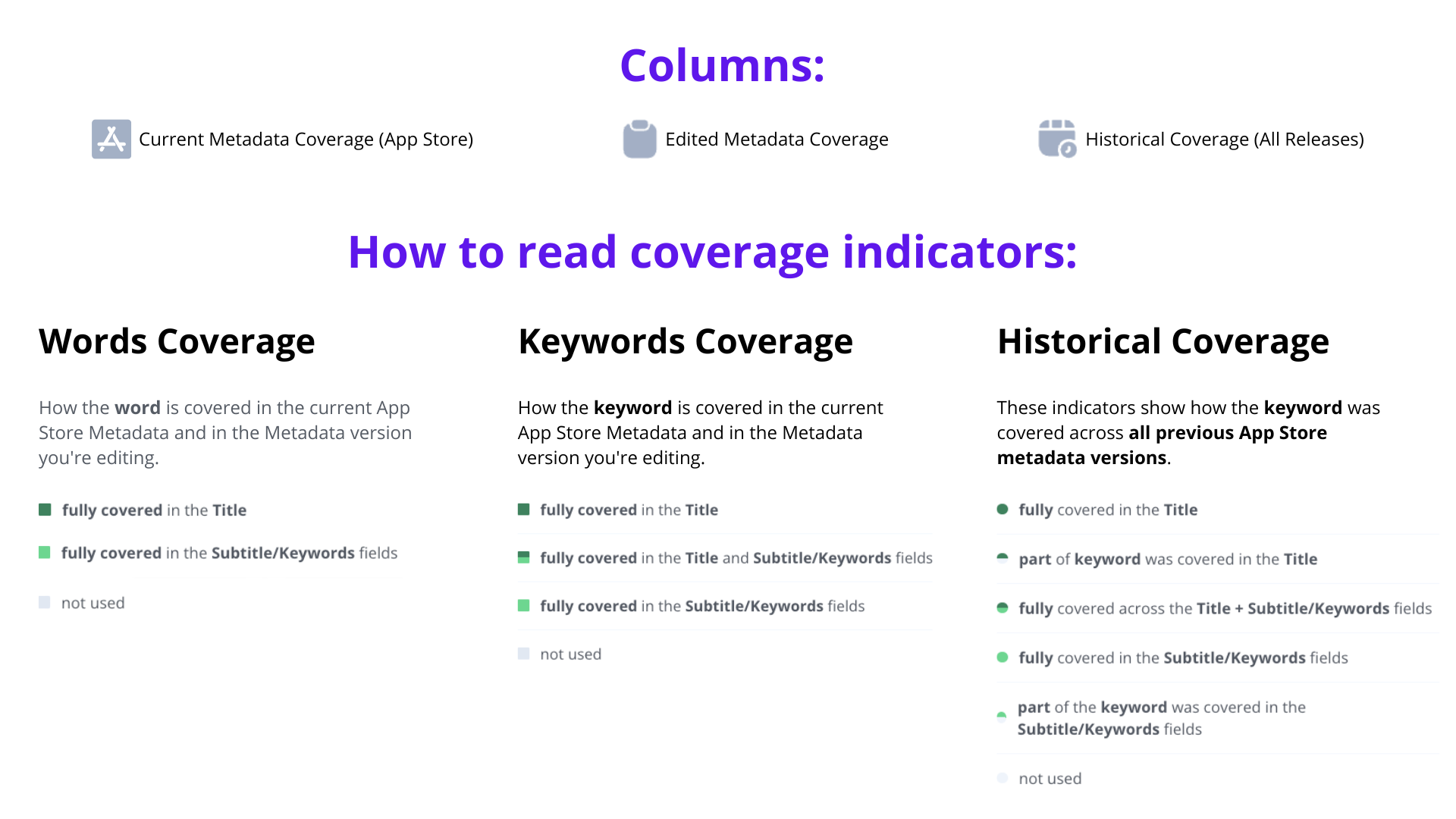
Current and new edited coverage:
- Fully covered in the Title
- Fully covered in the Title and Subtitle/Keywords fields
- Fully covered in the Subtitle/Keywords fields
- Partially used in the Title and Subtitle/Keywords fields
- Partially used in the Title only
- Partially used in the Subtitle and/or Keywords fields
- Not used
Switch to Historical Coverage (toggle at the top right of the tab) to see the best coverage this keyword has ever had across all your past metadata versions.
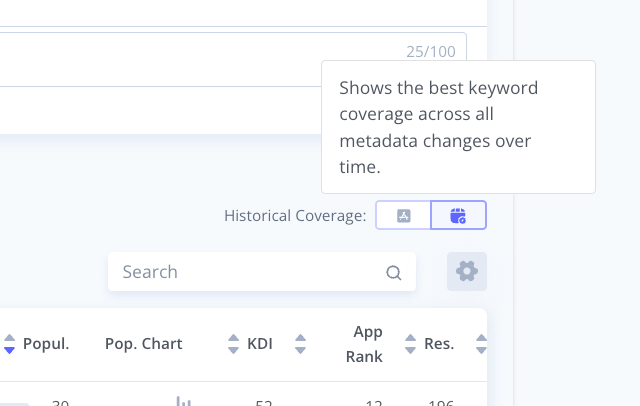
Historical coverage states:
- Fully covered in the Title
- Part of keyword covered in the Title
- Fully covered across Title + Subtitle/Keywords
- Fully covered in Subtitle/Keywords
- Part of keyword covered in Subtitle/Keywords
- Not used
Working with the Words tab
The Words tab shows individual words from your semantic core, sorted by total popularity. Use it while writing your Title and Subtitle to see in real time which words you're covering.
As you type in the metadata fields above, the coverage indicators update immediately.
"Use in" mode: toggle it on to add a word directly to a specific locale's field without leaving the Words tab. Select the word, pick the locale, and Asolytics inserts it.
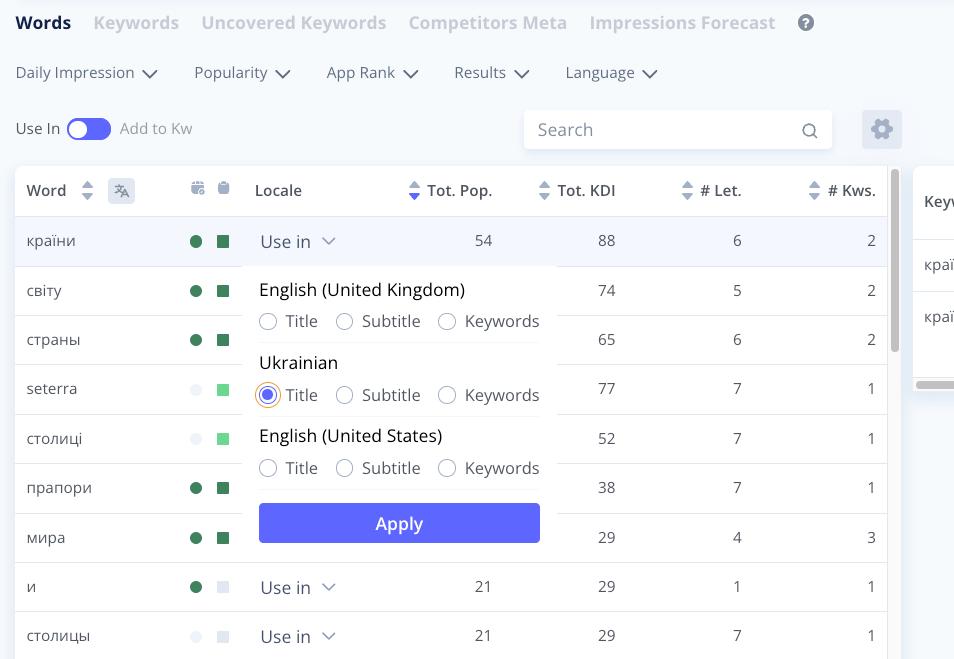
Working with the Keywords tab
The Keywords tab shows your full tracked keyword phrases with per-locale coverage columns.
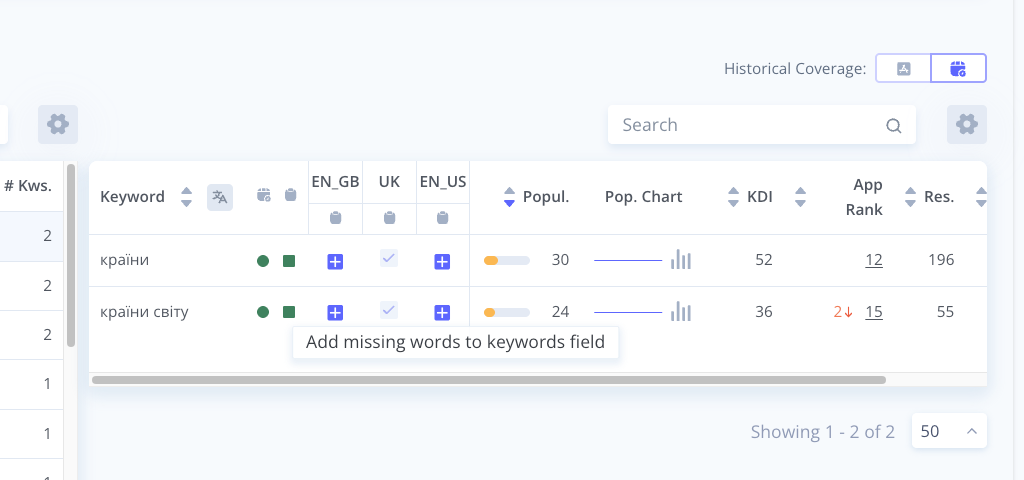
For each keyword you see: coverage per locale, total popularity, popularity chart, KDI, App Rank, Best Rank, Results, and how many of your tracked competitors are in the top 10.
Click the App Rank number to open the Keyword Ranking History for that keyword.
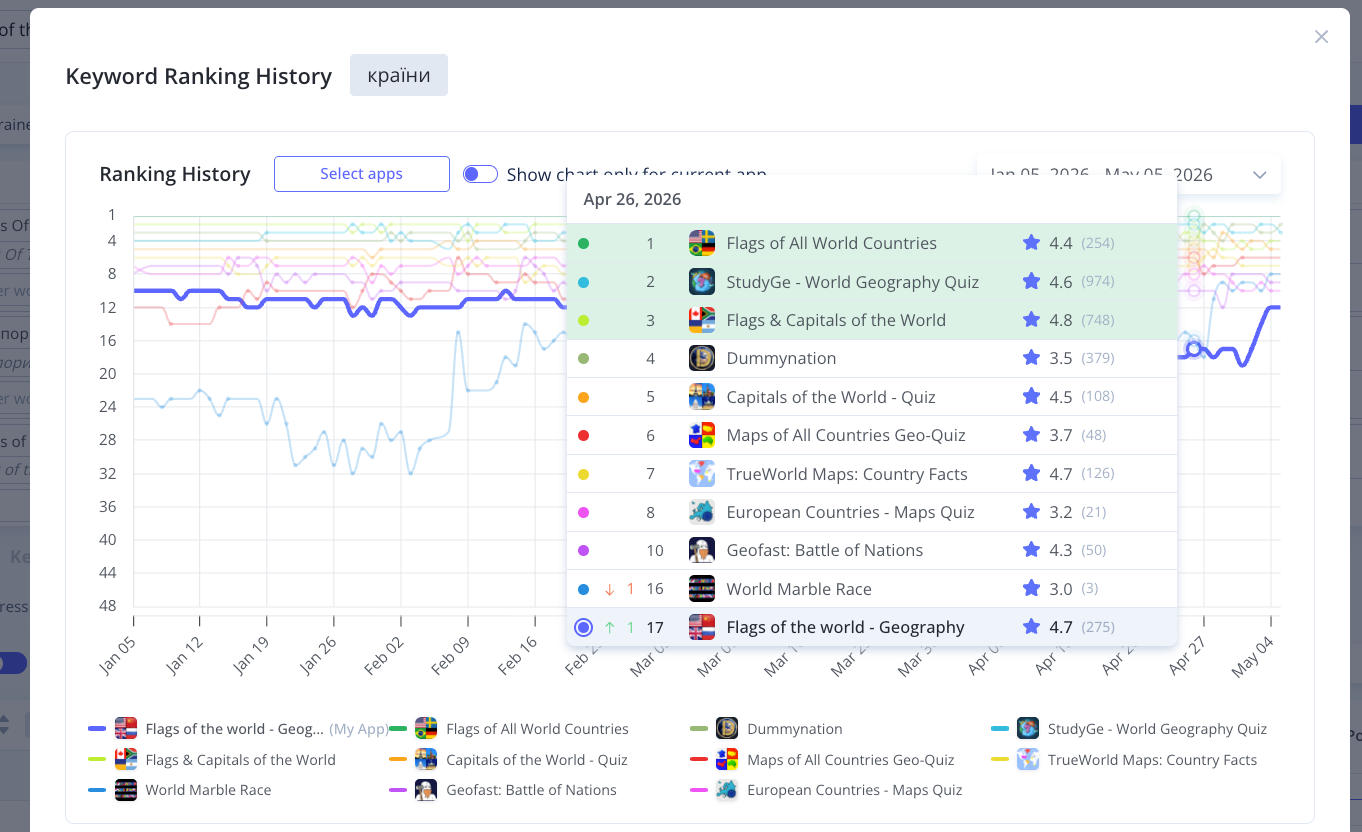
The history popup shows your ranking chart over time, top countries by app rank, and top countries by popularity. Toggle "Show current app only" to isolate your app on the chart.
Add missing words to the Keywords field
After you finish writing your Title and Subtitle for each locale, use this to maximize keyword coverage in the Keywords field.
Check the Words or Keywords tab for phrases that are only partially covered. For example: a keyword tracked for US and Spanish where the Spanish Keywords field is missing one word.
Click "Add missing words to keyword field" and Asolytics inserts the missing word into that locale's Keywords field automatically.
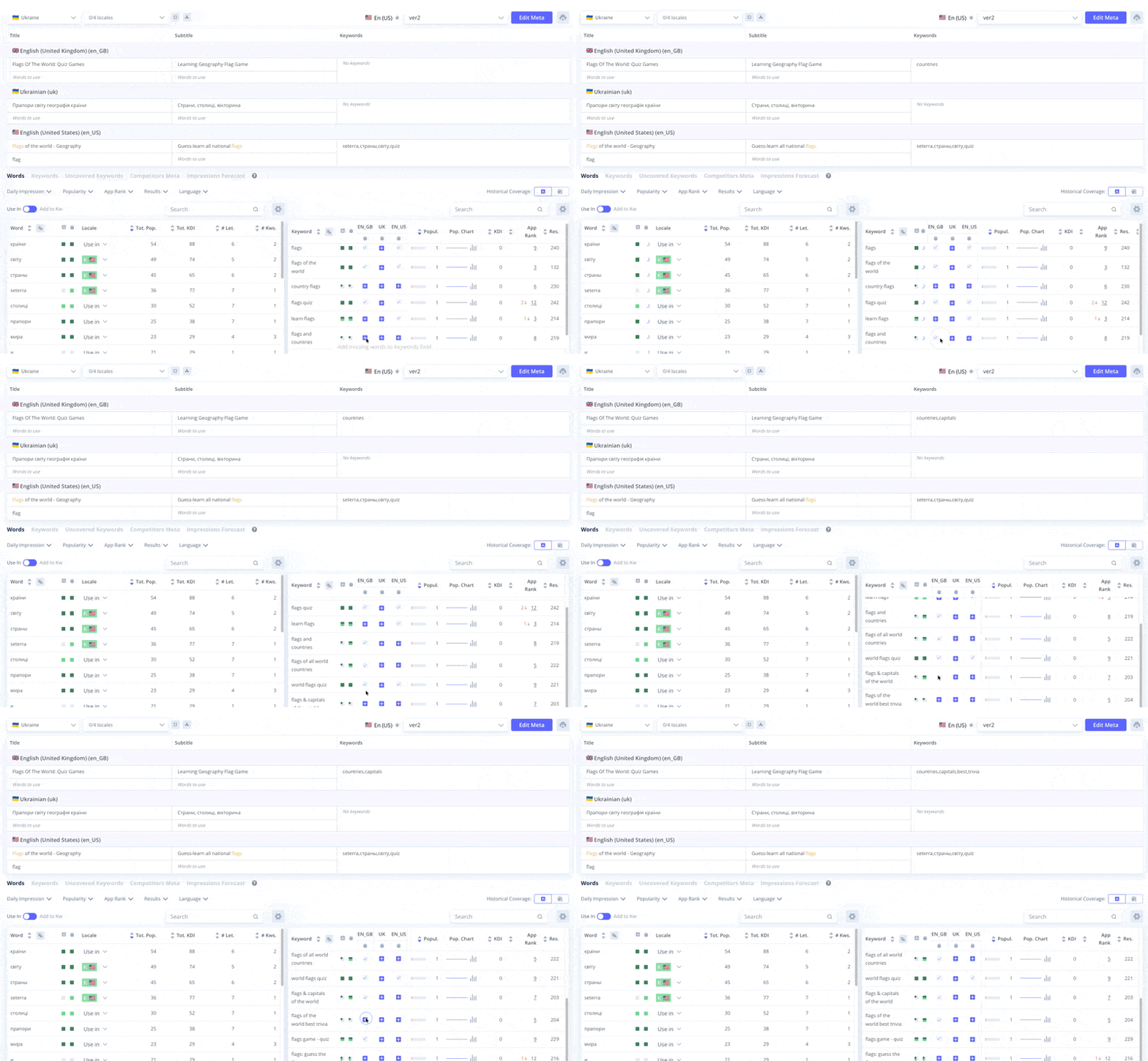
Repeat for each locale. This is the fastest way to close coverage gaps after your main metadata is written.
Uncovered Keywords tab
Switch to Uncovered Keywords to see every keyword in your semantic core with zero coverage in the current country.
Each entry shows which fields still have character space. You can add words directly from this view. Note: if the primary locale is already at its 100-character limit, use other locales that are indexed for the same country. Changes to a locale that applies across multiple countries will affect all of them.
Competitors Meta tab
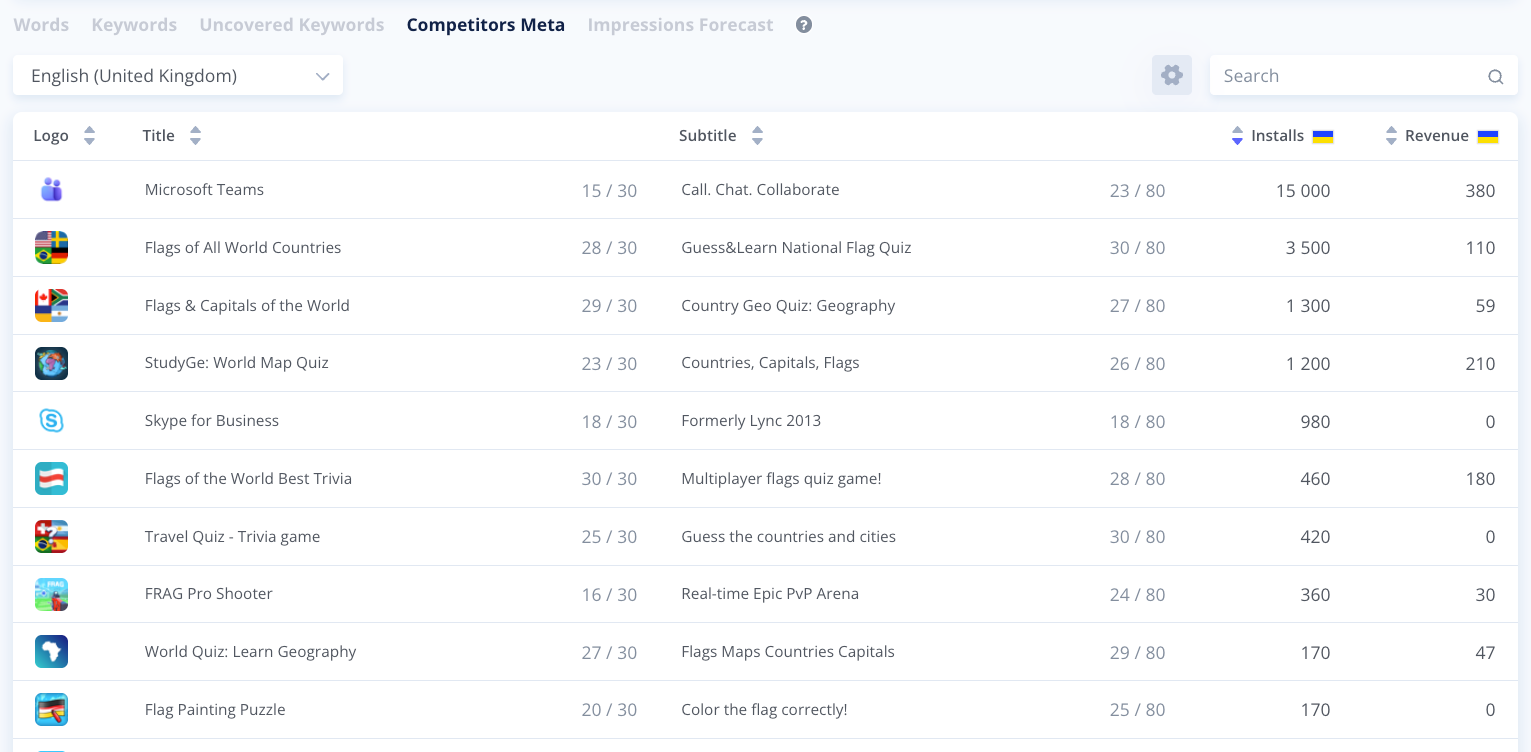
Switch to Competitors Meta to see how your tracked competitors write their metadata for any locale. Pick a locale and get every competitor's Title, Subtitle, and Keywords side by side.
Useful for finding high-priority keywords competitors target that you don't yet cover.
Impressions Forecast
When you finish a metadata version, open the Impressions Forecast tab to run a prediction.
The forecast shows what will happen to your App Store positions if you submit this exact metadata set:
- Country-by-country breakdown of estimated visibility and ranking changes.
- How many keywords will start ranking that currently have no rank.
- Position movement summary: how many go up, how many go down, by how much.
- Per-keyword estimated rank change, filterable by country.
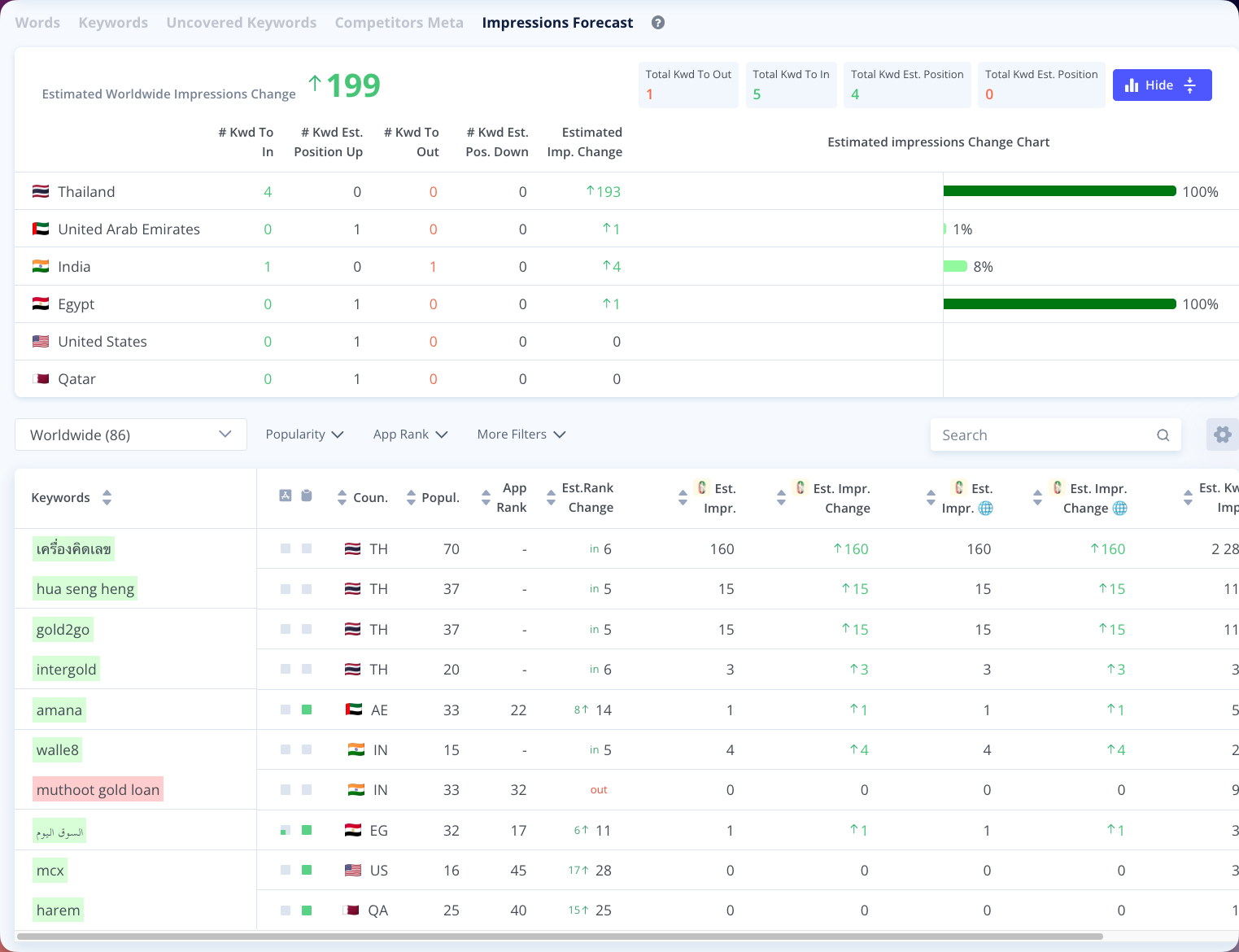
Run this before submitting to catch mistakes early. For example: a new title that improves ranking in the US but drops it in Germany.
What's next
To build or expand your semantic core, use Recommended Keywords. Asolytics automatically finds relevant search terms for your app, which you can approve and add to your tracked keyword list. Those keywords then appear in Meta Editor's analysis tabs.