
Keyword Coverage Analysis (App Store)
A small square sits next to every keyword in your list. It tells you whether that keyword is already in your app's metadata, and where:
- in the Title,
- the Subtitle,
- or the Keywords field.
You can see which keywords your metadata already covers and which ones it misses, without opening App Store Connect.
Why to use: Check how your current metadata covers the keyword
Goal: Find the keywords that are missing or only partly used, and fix them in your next metadata update.
This feature is available for App Store apps only.
1. Read the coverage indicator
The square next to a keyword shows how that keyword is covered in the current App Store metadata and in the metadata version you're editing.
The keyword is:
- fully covered in the Title
- fully covered in the Title and Subtitle/Keywords fields
- fully covered in the Subtitle/Keywords fields
- partially used in the Title and Subtitle/Keywords fields
- partially used in the Title
- partially used in the Subtitle and/or Keywords fields
- not used
"Fully covered" means every word of the keyword is in your metadata. "Partially used" means some words are there and others are missing. For example, if you track video editor and only video appears in your Subtitle, the keyword is partially used.
Hover over the question mark next to the indicator to see this legend in the product.
2. Check coverage by locale
Hover over the square to open Keyword Coverage Analysis. It lists every locale of your app and shows the keyword as it appears in each one. Each word is colored by the field it's in:
- in title
- in subtitle
- in keywords
- uncovered: the word isn't in any field of this locale
- excluded
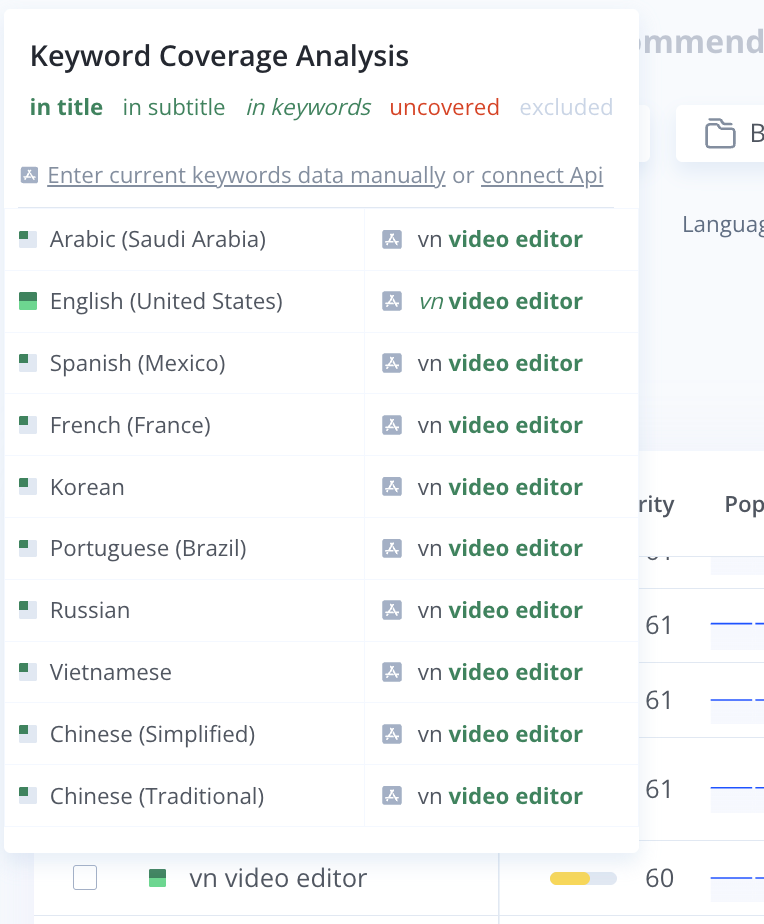
Add the missing word to that locale's Keywords field and the keyword becomes fully covered.
3. Add your Keywords field data
App Store shows your Title and Subtitle to everyone, so Asolytics reads them automatically.
The Keywords field is different. It holds up to 100 characters, users never see it, and the only place it exists is your App Store Connect account.
That's why Asolytics can't see this field on its own.
Until you add it, the coverage indicators only count your Title and Subtitle. A keyword you placed in the Keywords field will show as not used or partially used, even though App Store indexes it. The same data also powers Impressions Forecast in Meta Editor.
You can add this data in two ways. Both links are at the top of the Keyword Coverage Analysis popup: Enter current keywords data manually or connect Api.
Option 1. Enter it manually
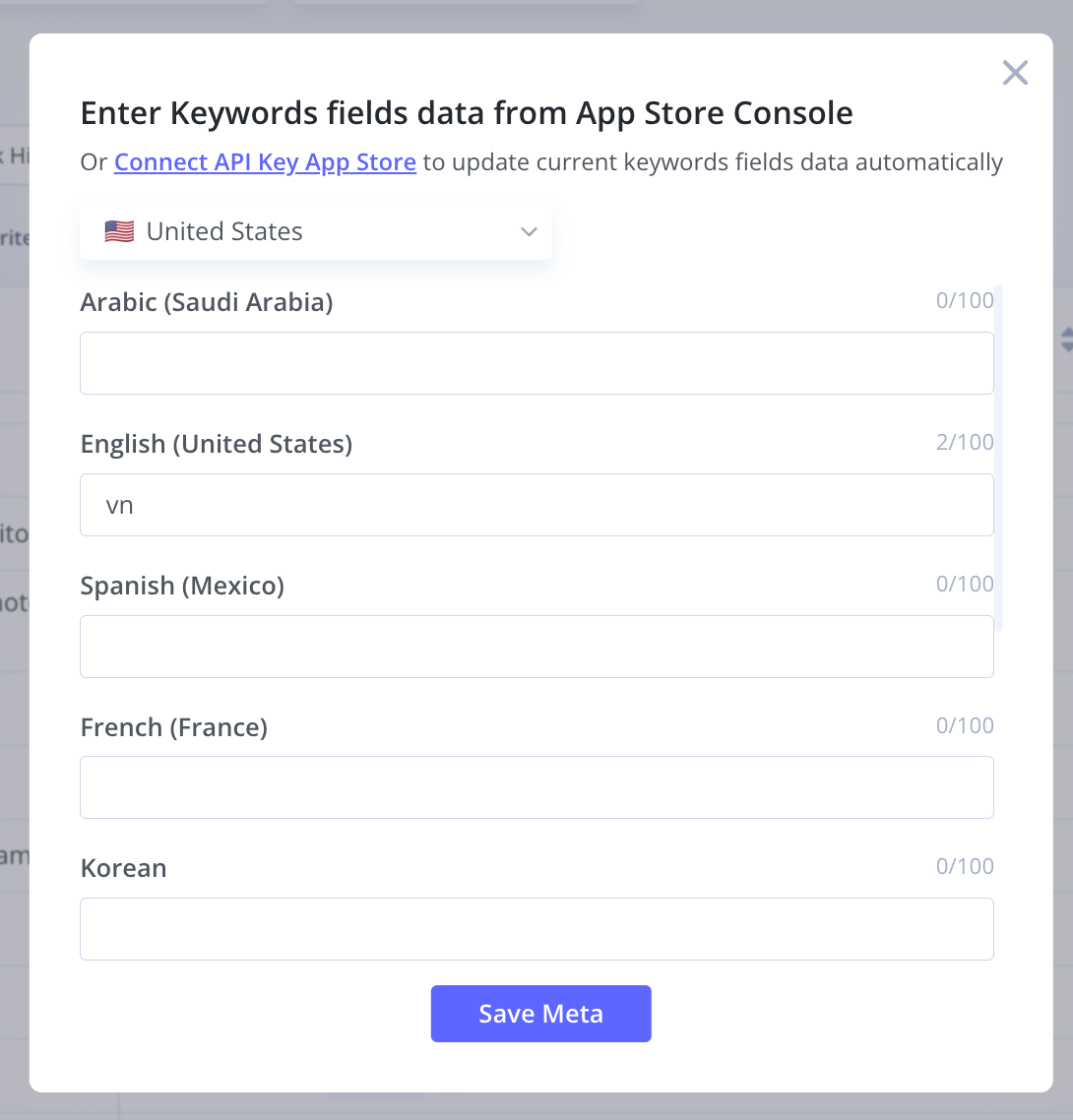
- Choose the country at the top of the form.
- Open App Store Connect and copy the Keywords field for each locale.
- Paste each one into the matching locale in the form. A counter shows how many of the 100 characters you've used.
- Click Save Meta.
Asolytics recalculates coverage with the data you entered. The data you enter manually doesn't update itself. If you change your Keywords field in App Store Connect, enter the new version here too.
Option 2. Connect the App Store Connect API key
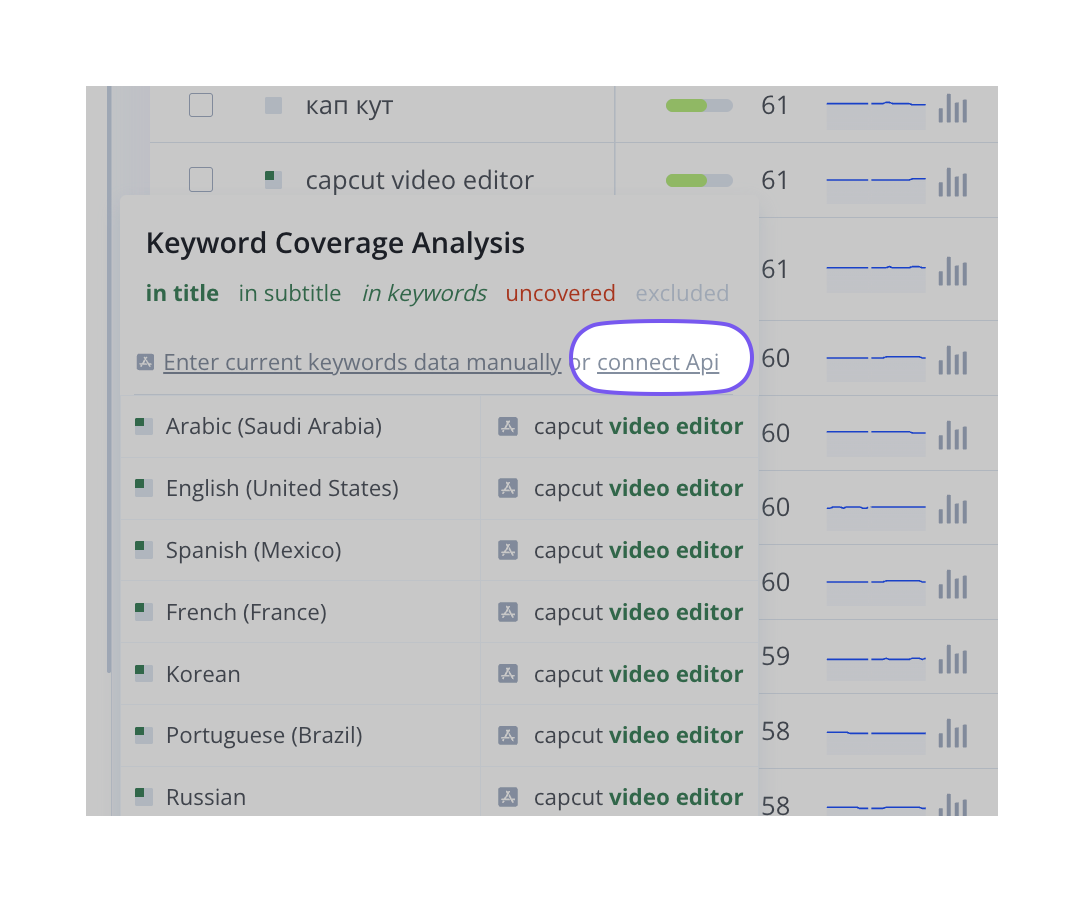
We recommend the API if you update metadata regularly or work with many locales. You connect it once and the data stays current.